Posts are below. Jump to the post list ↓

Posts are below. Jump to the post list ↓

Filter posts by category

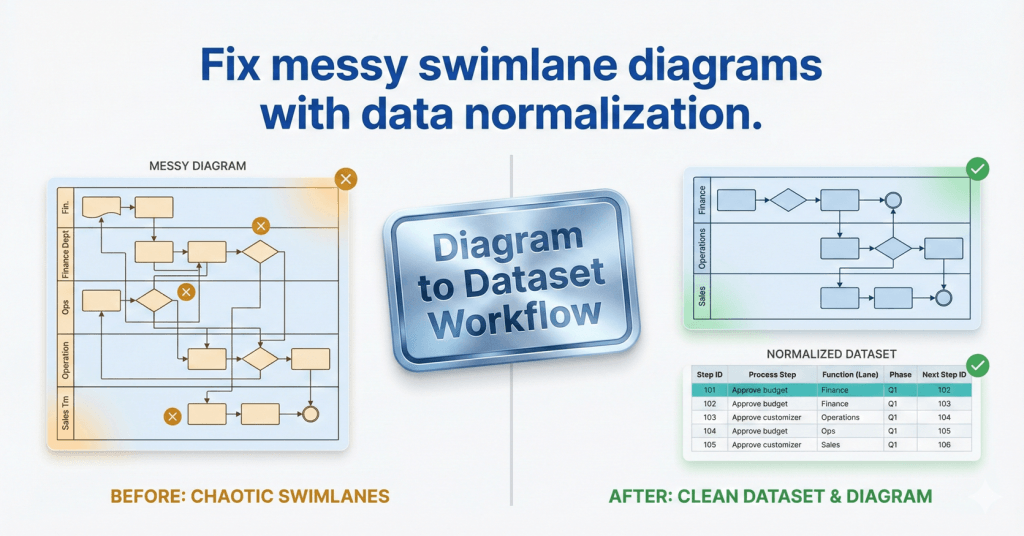
comparison graphic titled "Fix messy swimlane diagrams with data normalization." The left side shows a chaotic, unorganized cross-functional flowchart marked with amber warning signs, labeled "Before: Chaotic Swimlanes." The right side displays a clean, structured data table and a perfectly aligned flowchart marked with green success checks, labeled "After: Clean Dataset & Diagram." A central metallic badge reads "Diagram to Dataset Workflow.

Swimlanes as Data: The Function Field That Makes or Breaks Cross-Functional Imports

If your cross-functional Data Visualizer diagram looks scrambled, the culprit is usually Function. Here’s the lane naming method that prevents chaos and keeps diagrams refreshable.
Yoast Focus Keyphrase: Data Visualizer Function field

Swimlanes as Data: The Function Field That Makes or Breaks Cross-Functional Imports Read More »
, , , ,
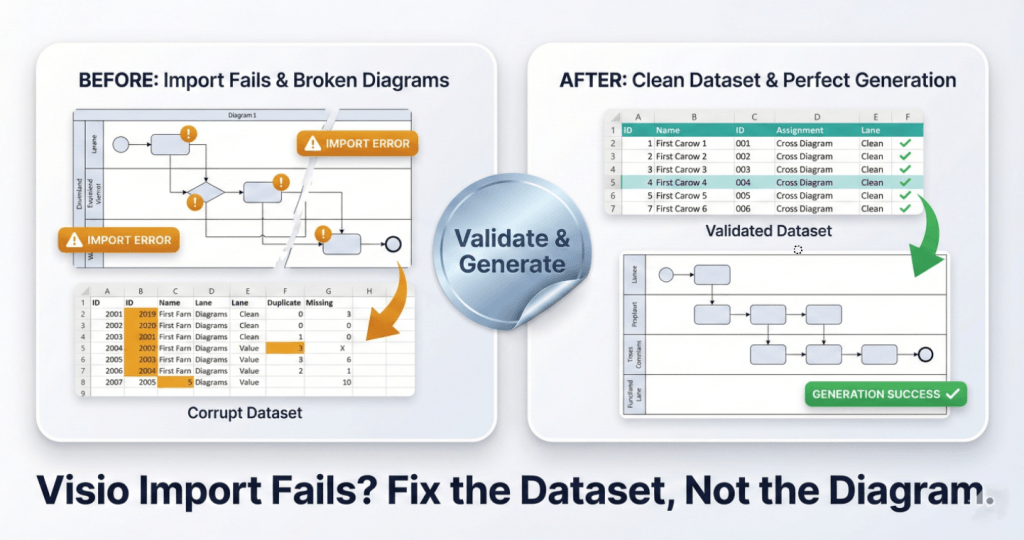
A square split-screen comparison graphic with a premium metallic trading-card finish. The bottom headline reads "Visio Import Fails? Fix the Dataset, Not the Diagram." The left card, labeled "BEFORE: Import Fails & Broken Diagrams," shows a "Corrupt Dataset" table with amber error highlights and a broken, glitchy flowchart diagram marked with "IMPORT ERROR" warning badges. A central shiny silver foil sticker reading "Validate & Generate" acts as a bridge to the right side. The right card, labeled "AFTER: Clean Dataset & Perfect Generation," displays a clean "Validated Dataset" table with green checkmarks and a perfectly generated, organized flowchart labeled "GENERATION SUCCESS."

Swimlanes as Data: The Function Field That Makes or Breaks Cross-Functional Imports

Most Data Visualizer import errors are not “Visio problems.” They’re dataset integrity problems. Here are 7 failure modes and the fastest way to isolate and fix them.
Yoast Focus Keyphrase: Visio Data Visualizer import error

Swimlanes as Data: The Function Field That Makes or Breaks Cross-Functional Imports Read More »
, , , ,
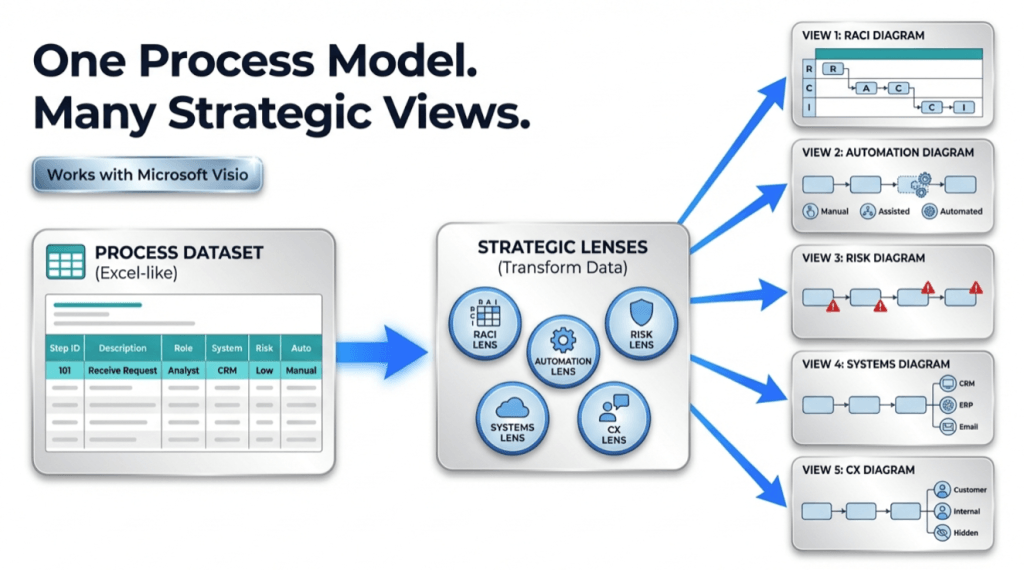
infographic showing a workflow titled “One Process Model. Many Strategic Views.” On the left, an Excel-like process dataset table feeds into a central “Strategic Lenses” box containing icons for RACI (Responsible, Accountable, Consulted, Informed), Automation, Risk, Systems, and CX (Customer Experience). Blue arrows extend from the center to the right, where five simplified diagrams illustrate different views: RACI responsibilities, automation levels (manual, assisted, automated), risk indicators, connected systems, and customer experience touchpoints. A “Works with Microsoft Visio” badge appears near the top.

One Process Model, Many Views: RACI, Risk, Automation, and more (Pt. 3 Of 3)

Once a process map exists as data, you can generate multiple “lenses” without redrawing: RACI ownership, automation potential, risk and controls, system touchpoints and handoffs, customer impact, and decision rights. Keep core step columns stable, add lens columns, then regenerate the diagram using those columns as swimlanes and phases. One model, many views – updated once.

One Process Model, Many Views: RACI, Risk, Automation, and more (Pt. 3 Of 3) Read More »

, , , , , , , , , ,
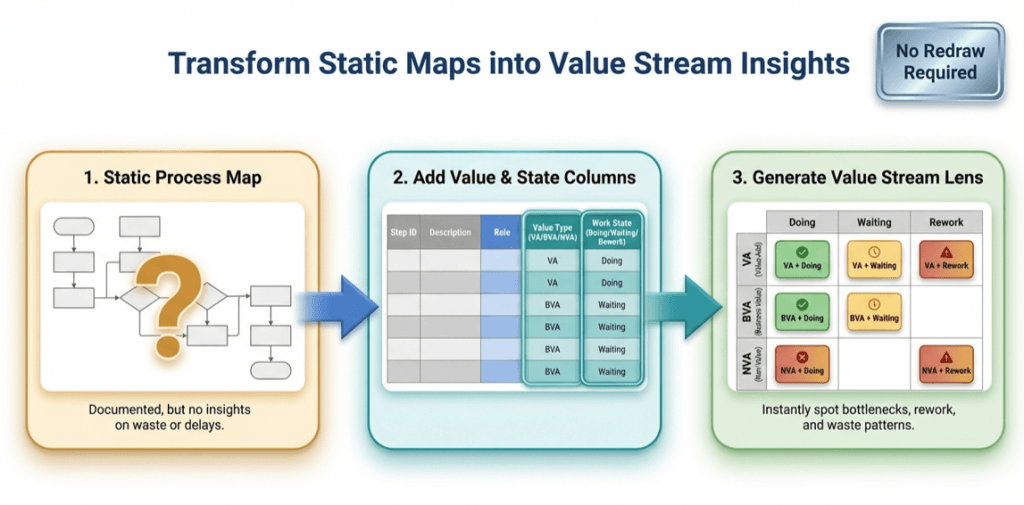
infographic titled ‘Transform Static Maps into Value Stream Insights.’ It shows a three-step flow from left to right: (1) a static process map with a question mark, labeled as documented but lacking insight; (2) a table adding value type (value-added, business value-added, non-value-added) and work state (doing, waiting, rework); and (3) a color-coded value stream lens matrix highlighting bottlenecks, waiting, rework, and waste. A badge in the top right reads ‘No Redraw Required

The Value Stream Lens: 1 process map, 9 insights (Pt. 2 of 3)

Once a process map exists as data, you can “re-lane” it without redrawing. This Lean value-stream lens replaces department swimlanes with VA/BVA/NVA and replaces phases with Doing/Waiting/Rework—creating a 3×3 grid of nine insights. It quickly surfaces bottlenecks, approval drag, and rework loops, and it’s easy to implement by adding two columns to your process table and regenerating the diagram.

The Value Stream Lens: 1 process map, 9 insights (Pt. 2 of 3) Read More »

, , , , , , , , , , ,
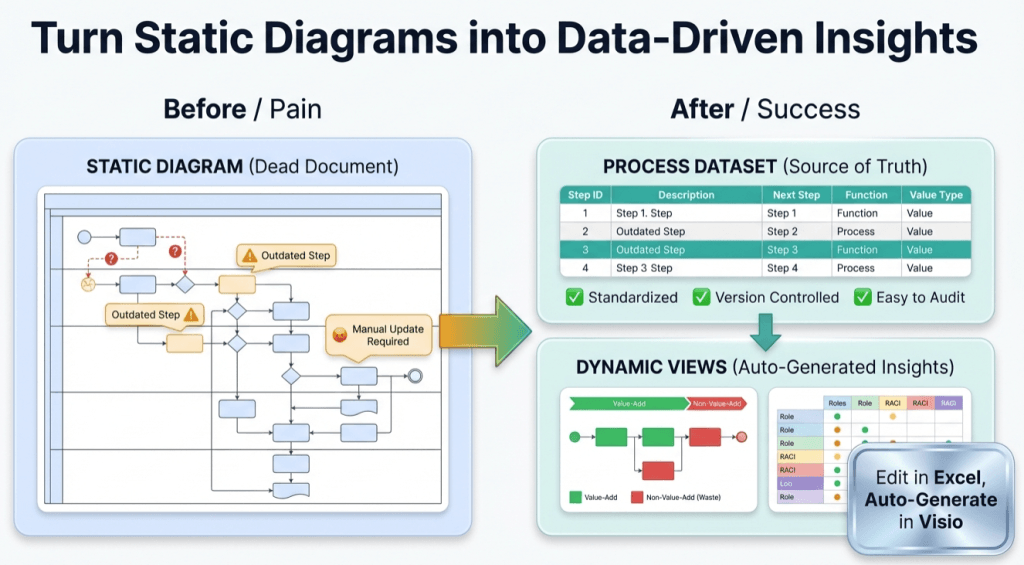
infographic titled ‘Turn Static Diagrams into Data-Driven Insights.’ On the left, a ‘Before / Pain’ section shows a cluttered static process diagram labeled ‘Static Diagram (Dead Document)’ with warning icons, outdated steps, question marks, and a note reading ‘Manual Update Required.’ In the center, a large green arrow points right. On the right, an ‘After / Success’ section shows a clean ‘Process Dataset (Source of Truth)’ table with step IDs and descriptions, checkmarks for standardized, version-controlled, and easy-to-audit processes, and a ‘Dynamic Views’ panel displaying value-add versus non-value-add flow and role responsibility charts. A callout reads ‘Edit in Excel, Auto-Generate in Visio.’ The overall message contrasts manual, outdated diagrams with automated, data-driven process insights.

Turn a Process Diagram Into Process Data – and keep it alive (Pt. 1 of 3)

Static process diagrams drift the moment reality changes. Fix it by treating the process as data: capture each step as a row (ID, description, next step, type, function, phase), generate a linked Visio Data Visualizer diagram from the table, then keep it current by updating the dataset and refreshing the diagram. One dataset, many views.

Turn a Process Diagram Into Process Data – and keep it alive (Pt. 1 of 3) Read More »

, , , , , , , , , , ,
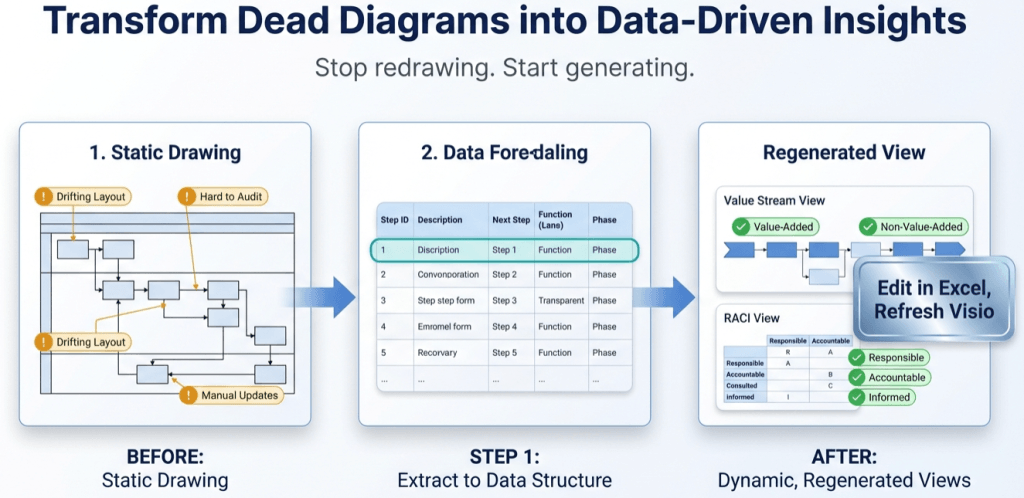
infographic titled “Transform Dead Diagrams into Data-Driven Insights.” It shows a three-step progression from left to right: (1) a static process diagram with warnings like “drifting layout,” “hard to audit,” and “manual updates”; (2) a structured data table representing extracted process steps, functions, and phases; and (3) regenerated, dynamic views including a value stream map highlighting value-added versus non-value-added steps and a RACI (Responsible, Accountable, Consulted, Informed) responsibility matrix. Arrows connect each stage, emphasizing the shift from static drawings to dynamic, data-driven visualizations that can be edited in Excel and refreshed in Visio.

Diagram to Data-Driven Insights in Visio

Most Visio swimlane diagrams drift because the drawing becomes the source of truth. Flip the workflow: extract the process into a table, generate a linked Data Visualizer diagram, then update the dataset and refresh the diagram. With one dataset you can audit consistency fast and generate multiple lenses—Value Stream, RACI, Automation, Risk & Control—without redrawing. This post walks through the loop and includes a free Lite download (20 steps) to test it on a real diagram.

Diagram to Data-Driven Insights in Visio Read More »

Sentinel Connector for SharePoint Main Application – Quick Start (pt1)

Here’s a quick start video for the main application of Sentinel Connector for SharePoint. We hope this helps you! Please check out the other videos for the Sentinel connector for SharePoint and they will give you a very comprehensive idea about how the application works to help you manage video, large files, and bulk uploads

Sentinel Connector for SharePoint Main Application – Quick Start (pt1) Read More »

Scroll to Top