Data Visualizer

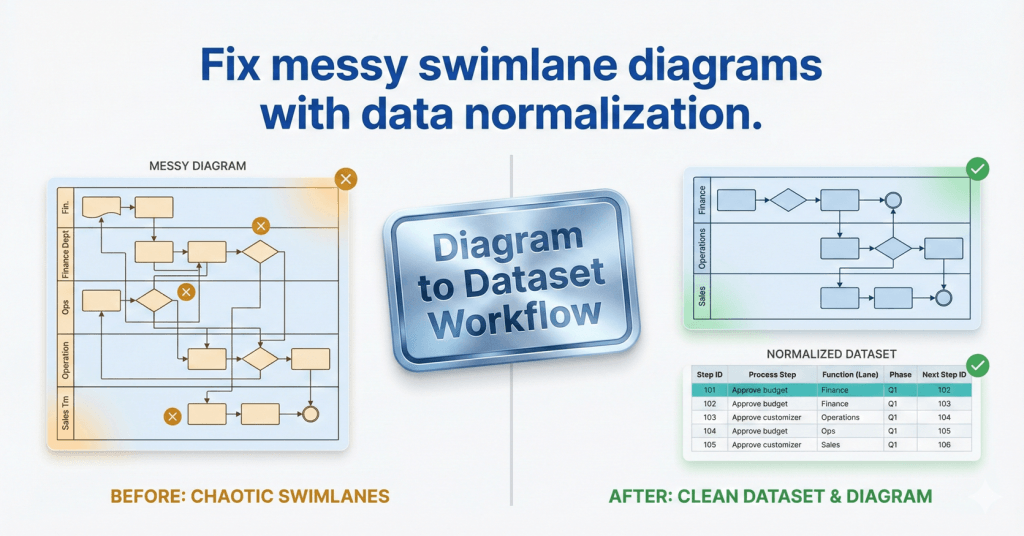
comparison graphic titled "Fix messy swimlane diagrams with data normalization." The left side shows a chaotic, unorganized cross-functional flowchart marked with amber warning signs, labeled "Before: Chaotic Swimlanes." The right side displays a clean, structured data table and a perfectly aligned flowchart marked with green success checks, labeled "After: Clean Dataset & Diagram." A central metallic badge reads "Diagram to Dataset Workflow.

Swimlanes as Data: The Function Field That Makes or Breaks Cross-Functional Imports

If your cross-functional Data Visualizer diagram looks scrambled, the culprit is usually Function. Here’s the lane naming method that prevents chaos and keeps diagrams refreshable.
Yoast Focus Keyphrase: Data Visualizer Function field

Swimlanes as Data: The Function Field That Makes or Breaks Cross-Functional Imports Read More »
, , , ,
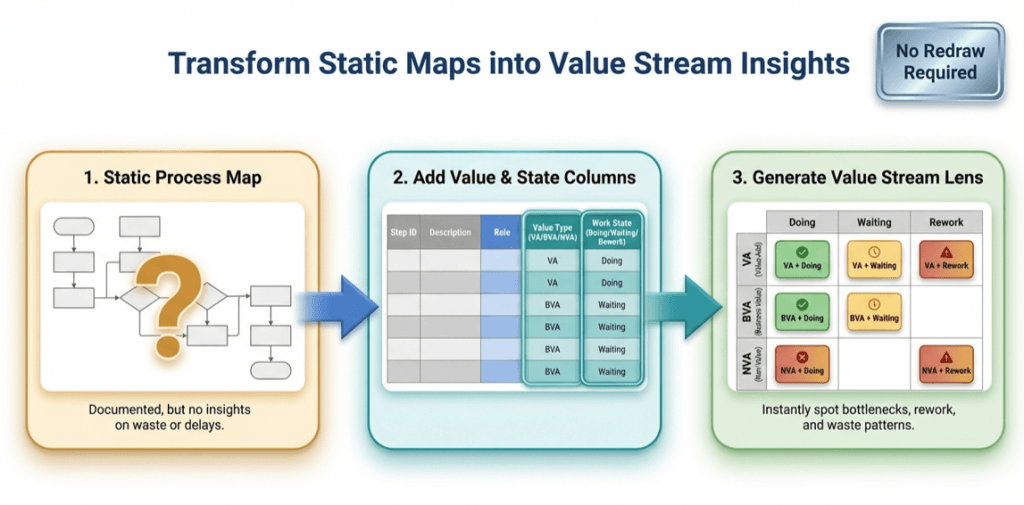
infographic titled ‘Transform Static Maps into Value Stream Insights.’ It shows a three-step flow from left to right: (1) a static process map with a question mark, labeled as documented but lacking insight; (2) a table adding value type (value-added, business value-added, non-value-added) and work state (doing, waiting, rework); and (3) a color-coded value stream lens matrix highlighting bottlenecks, waiting, rework, and waste. A badge in the top right reads ‘No Redraw Required

The Value Stream Lens: 1 process map, 9 insights (Pt. 2 of 3)

Once a process map exists as data, you can “re-lane” it without redrawing. This Lean value-stream lens replaces department swimlanes with VA/BVA/NVA and replaces phases with Doing/Waiting/Rework—creating a 3×3 grid of nine insights. It quickly surfaces bottlenecks, approval drag, and rework loops, and it’s easy to implement by adding two columns to your process table and regenerating the diagram.

The Value Stream Lens: 1 process map, 9 insights (Pt. 2 of 3) Read More »

, , , , , , , , , , ,
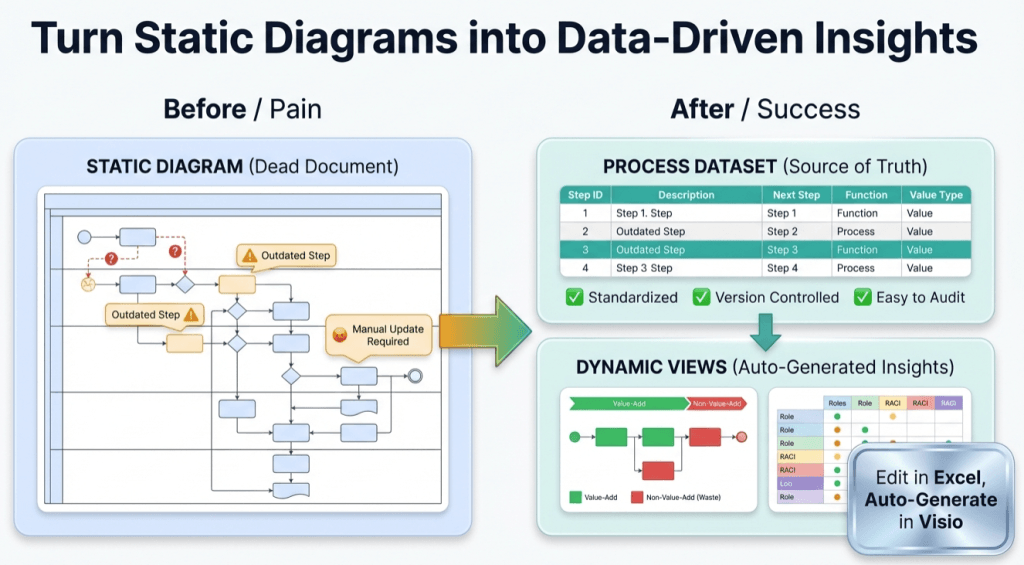
infographic titled ‘Turn Static Diagrams into Data-Driven Insights.’ On the left, a ‘Before / Pain’ section shows a cluttered static process diagram labeled ‘Static Diagram (Dead Document)’ with warning icons, outdated steps, question marks, and a note reading ‘Manual Update Required.’ In the center, a large green arrow points right. On the right, an ‘After / Success’ section shows a clean ‘Process Dataset (Source of Truth)’ table with step IDs and descriptions, checkmarks for standardized, version-controlled, and easy-to-audit processes, and a ‘Dynamic Views’ panel displaying value-add versus non-value-add flow and role responsibility charts. A callout reads ‘Edit in Excel, Auto-Generate in Visio.’ The overall message contrasts manual, outdated diagrams with automated, data-driven process insights.

Turn a Process Diagram Into Process Data – and keep it alive (Pt. 1 of 3)

Static process diagrams drift the moment reality changes. Fix it by treating the process as data: capture each step as a row (ID, description, next step, type, function, phase), generate a linked Visio Data Visualizer diagram from the table, then keep it current by updating the dataset and refreshing the diagram. One dataset, many views.

Turn a Process Diagram Into Process Data – and keep it alive (Pt. 1 of 3) Read More »

, , , , , , , , , , ,
Scroll to Top