
Swimlane

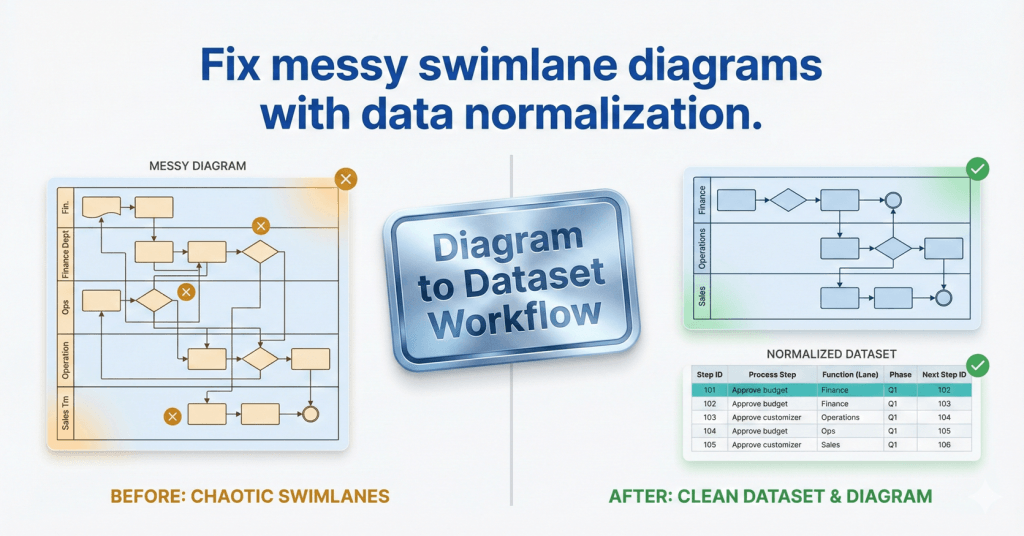
comparison graphic titled "Fix messy swimlane diagrams with data normalization." The left side shows a chaotic, unorganized cross-functional flowchart marked with amber warning signs, labeled "Before: Chaotic Swimlanes." The right side displays a clean, structured data table and a perfectly aligned flowchart marked with green success checks, labeled "After: Clean Dataset & Diagram." A central metallic badge reads "Diagram to Dataset Workflow.

Swimlanes as Data: The Function Field That Makes or Breaks Cross-Functional Imports

If your cross-functional Data Visualizer diagram looks scrambled, the culprit is usually Function. Here’s the lane naming method that prevents chaos and keeps diagrams refreshable.
Yoast Focus Keyphrase: Data Visualizer Function field

Swimlanes as Data: The Function Field That Makes or Breaks Cross-Functional Imports Read More »
, , , ,
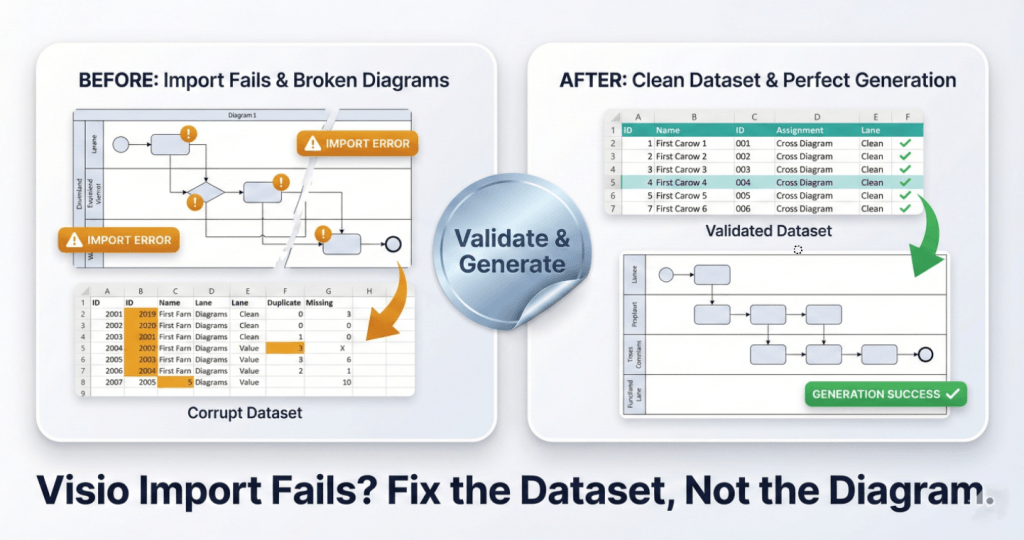
A square split-screen comparison graphic with a premium metallic trading-card finish. The bottom headline reads "Visio Import Fails? Fix the Dataset, Not the Diagram." The left card, labeled "BEFORE: Import Fails & Broken Diagrams," shows a "Corrupt Dataset" table with amber error highlights and a broken, glitchy flowchart diagram marked with "IMPORT ERROR" warning badges. A central shiny silver foil sticker reading "Validate & Generate" acts as a bridge to the right side. The right card, labeled "AFTER: Clean Dataset & Perfect Generation," displays a clean "Validated Dataset" table with green checkmarks and a perfectly generated, organized flowchart labeled "GENERATION SUCCESS."

Swimlanes as Data: The Function Field That Makes or Breaks Cross-Functional Imports

Most Data Visualizer import errors are not “Visio problems.” They’re dataset integrity problems. Here are 7 failure modes and the fastest way to isolate and fix them.
Yoast Focus Keyphrase: Visio Data Visualizer import error

Swimlanes as Data: The Function Field That Makes or Breaks Cross-Functional Imports Read More »
, , , ,
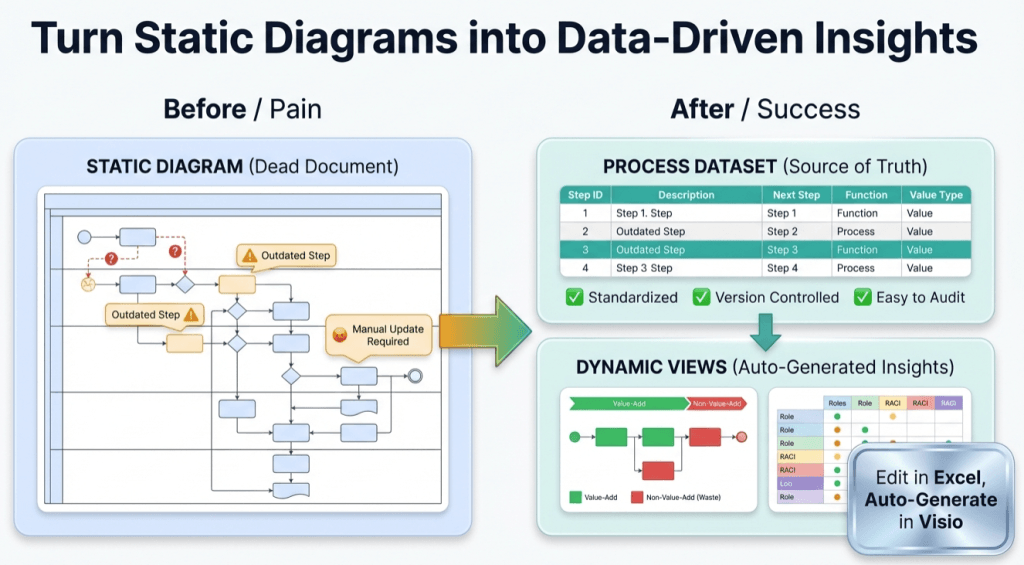
infographic titled ‘Turn Static Diagrams into Data-Driven Insights.’ On the left, a ‘Before / Pain’ section shows a cluttered static process diagram labeled ‘Static Diagram (Dead Document)’ with warning icons, outdated steps, question marks, and a note reading ‘Manual Update Required.’ In the center, a large green arrow points right. On the right, an ‘After / Success’ section shows a clean ‘Process Dataset (Source of Truth)’ table with step IDs and descriptions, checkmarks for standardized, version-controlled, and easy-to-audit processes, and a ‘Dynamic Views’ panel displaying value-add versus non-value-add flow and role responsibility charts. A callout reads ‘Edit in Excel, Auto-Generate in Visio.’ The overall message contrasts manual, outdated diagrams with automated, data-driven process insights.

Turn a Process Diagram Into Process Data – and keep it alive (Pt. 1 of 3)

Static process diagrams drift the moment reality changes. Fix it by treating the process as data: capture each step as a row (ID, description, next step, type, function, phase), generate a linked Visio Data Visualizer diagram from the table, then keep it current by updating the dataset and refreshing the diagram. One dataset, many views.

Turn a Process Diagram Into Process Data – and keep it alive (Pt. 1 of 3) Read More »

, , , , , , , , , , ,
Scroll to Top