
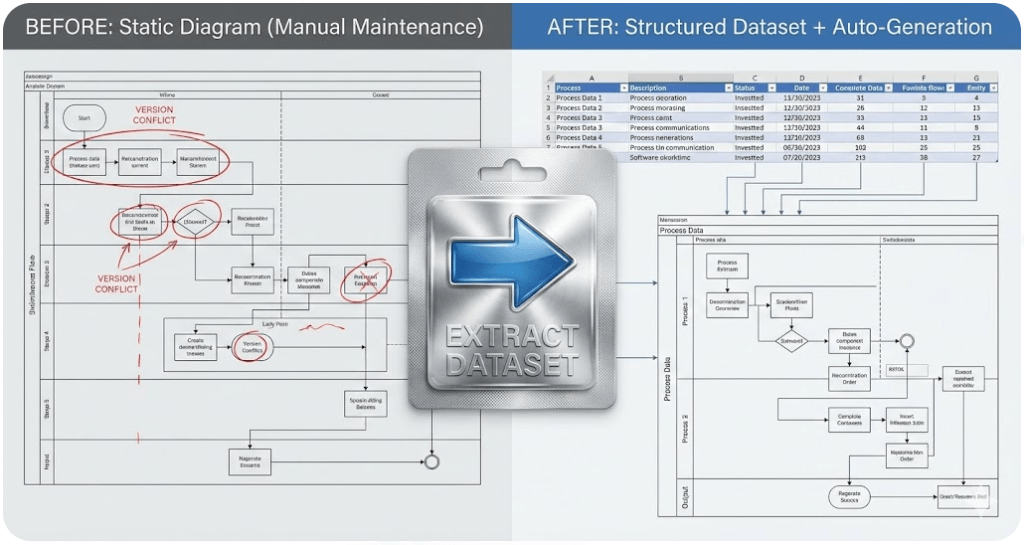
Visio Data Visualizer: export the dataset from an existing diagram (diagram → dataset)
If your process map lives in Visio, the hard part isn’t drawing version 1 — it’s keeping it correct as reality changes. This silo shows how to convert an existing Visio diagram into the Excel Data Visualizer dataset so you can maintain the process as data (audit, update, version), then regenerate clean diagrams on demand.
If you found this page searching for “Visio diagram to Excel” or “export Visio to spreadsheet”, start here: Convert a Visio diagram to Excel (diagram → dataset).
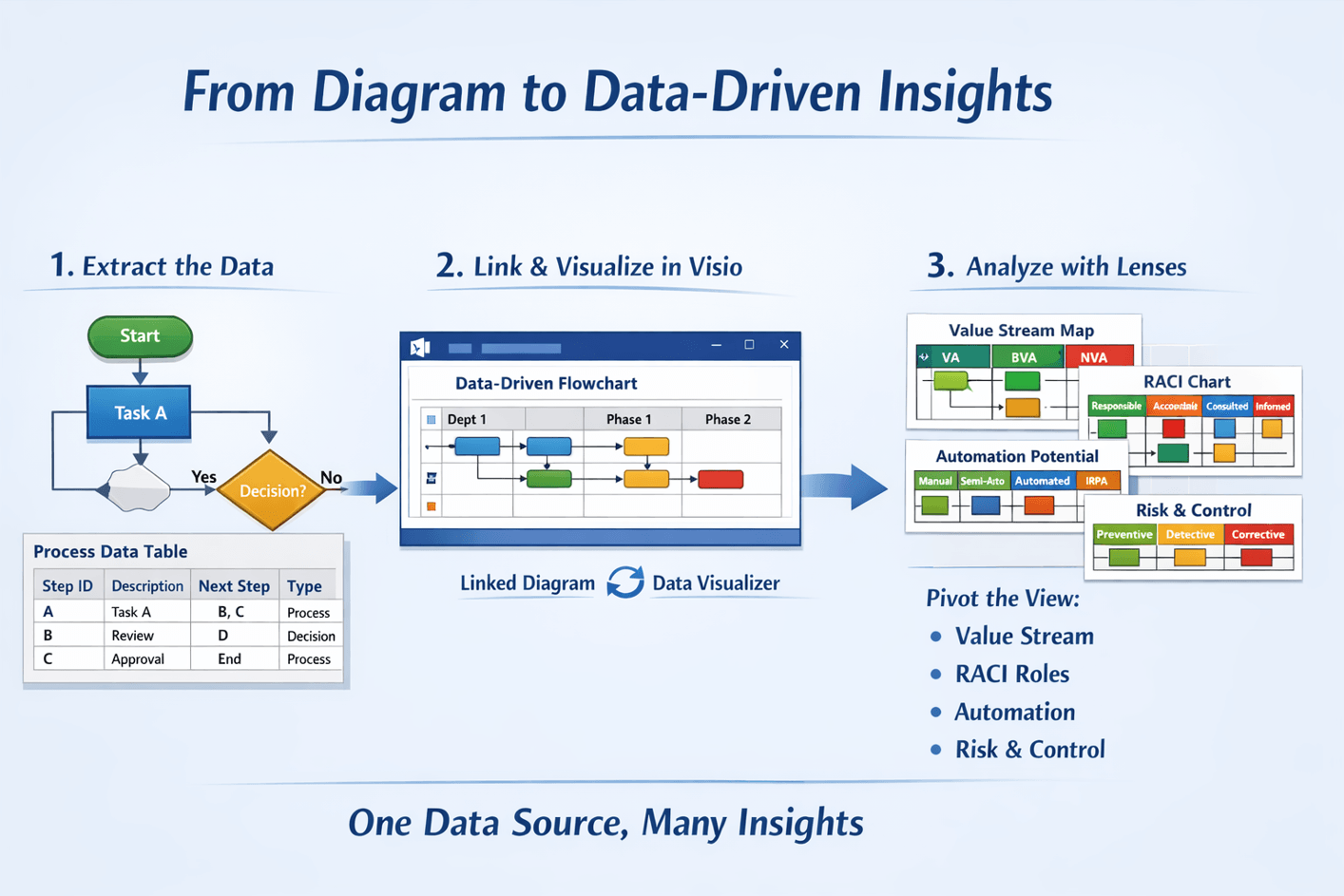
- Convert once: extract steps + connections from a Visio diagram into a Data Visualizer dataset.
- Update in Excel: make changes to the dataset (fast to audit, filter, validate, and version).
- Regenerate clean diagrams: import/refresh so the diagram stays consistent with the data.
- Use AI effectively: give LLMs a dataset so they analyze structure, not pixels.
Download Lite (Free) See Standard (Unlimited)


How to convert a Visio cross-functional flowchart into a Data Visualizer dataset
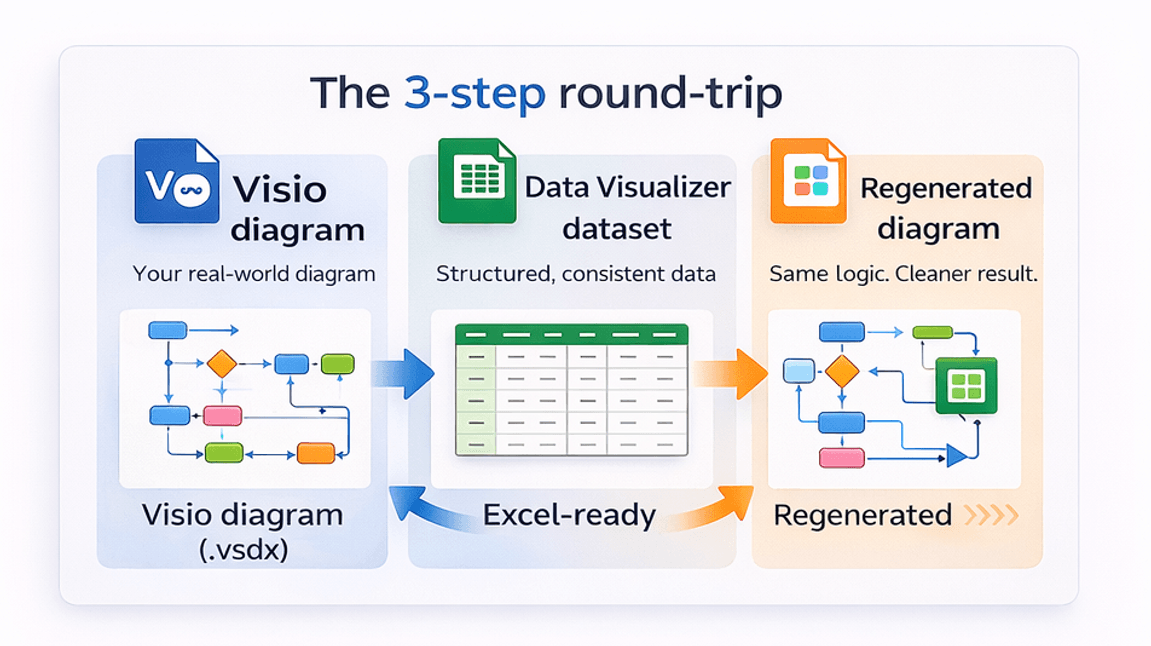
This is the core loop. Once you have the dataset, everything gets easier: audits, updates, and analysis.
- Get the generator. Download Lite (free) or use Standard for unlimited steps.
- Run it on your .vsdx diagram. Select your Visio cross-functional flowchart (swimlanes + phases).
- Review the dataset in Excel. Confirm step IDs, descriptions, lane/phase values, and connections (Next Step IDs).
- Import into Visio Data Visualizer. Start Cross-Functional Flowchart (Data Visualizer) and import the dataset.
- Maintain the process as data. Edit the dataset in Excel and refresh/regenerate the diagram when needed.
If your immediate goal is exporting a Visio diagram to Excel, use this dedicated page: Convert a Visio diagram to Excel (diagram → dataset).
Want a working dataset reference? Use the examples below — they match common Visio Data Visualizer patterns.
Key pages in this silo
- Dataset Generator (Standard) — product details + use cases.
- Download Lite — free 20-step proof run.
- Convert a Visio diagram to Excel — export the dataset table from an existing .vsdx (diagram → dataset).
- Dataset format — columns, rules, and examples.
- Import troubleshooting — fix common Data Visualizer errors.
- Cross-functional dataset example — swimlanes + phases.
- Basic flowchart dataset example — simple diagram patterns.
- AI + Visio analysis — analyze the dataset for bottlenecks and cleanup.
High-value outcomes
These are the reasons teams convert diagrams into datasets.
- Audit a process map in Excel (find duplicates, missing owners, inconsistencies).
- Update swimlane diagrams without redrawing (edit dataset, refresh diagram).
- Add “lenses” like RACI / value stream without maintaining multiple drifting Visio files.
If you want the fastest “spreadsheet-first” entry point, go here: Convert a Visio diagram to Excel (diagram → dataset).
Choose your version
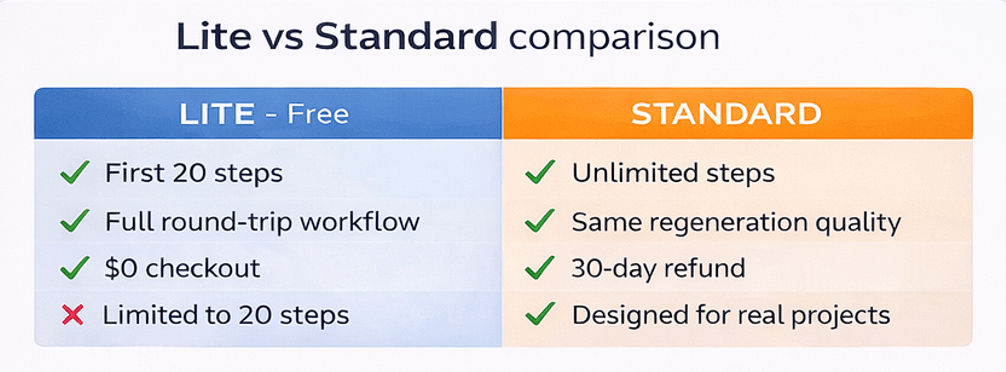
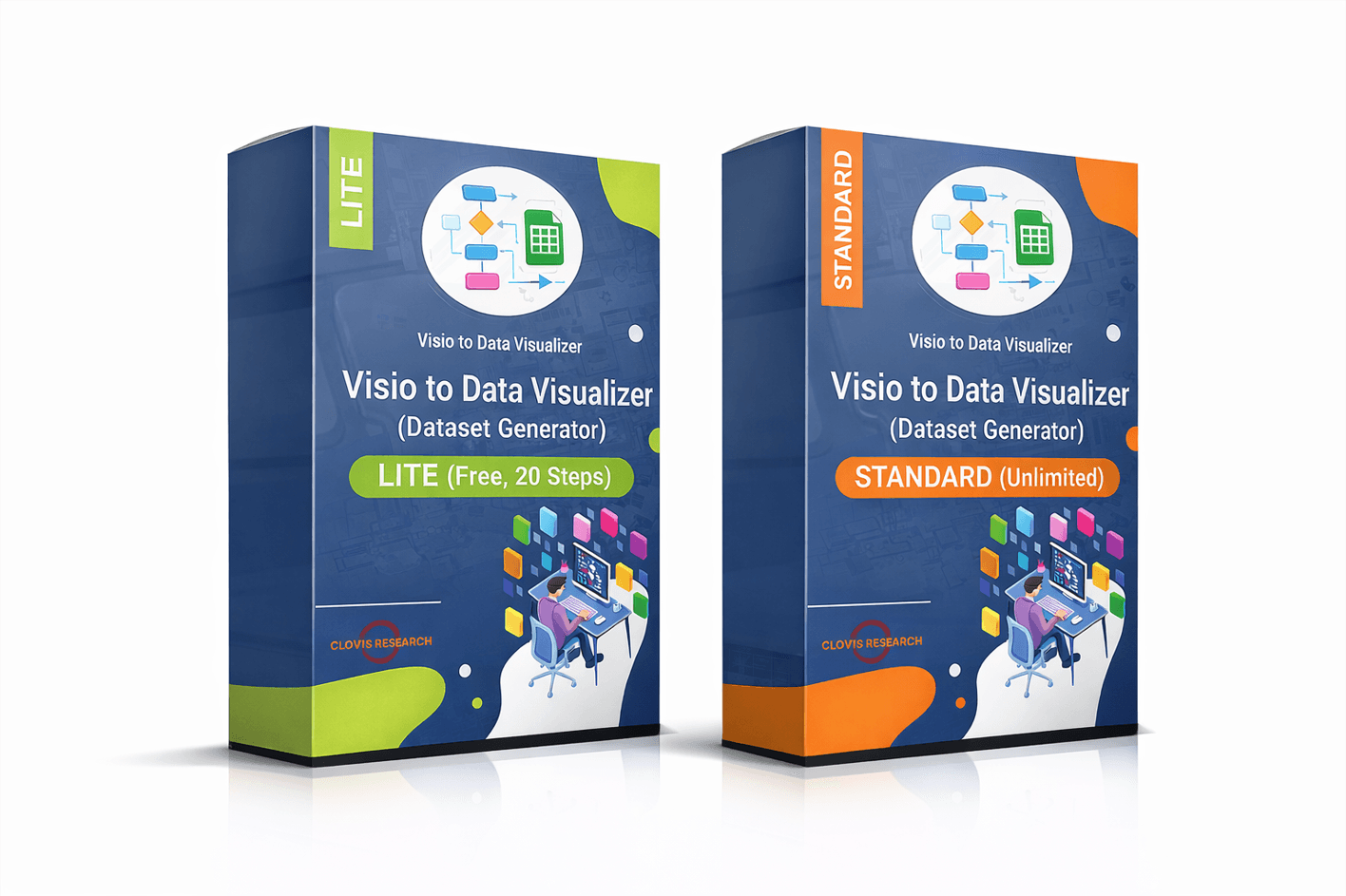
Lite (Free, 20 steps)
Fast proof-of-value on a real diagram. Exports the first 20 steps so you can validate conversion before paying.
Standard (Unlimited)
Removes the step limit so you can convert full-size process maps and process libraries.
Microsoft, Visio, and Excel are trademarks of Microsoft. This product is an independent tool and is not affiliated with Microsoft.
FAQ
Is “Data Visualizer” the diagram or the dataset?
In practice, most teams use “Data Visualizer” to mean the Excel dataset table associated with a Visio diagram. Visio can generate a diagram from that table, and you can refresh the diagram when the table changes.
How is this related to the Excel Visio Data Visualizer add-in?
The Excel Data Visualizer add-in turns an Excel Data Visualizer dataset into a Visio diagram. This workflow does the reverse: it converts an existing Visio diagram into the Data Visualizer dataset table so you can maintain the process as data.
What diagrams work best?
Best fit is Visio cross-functional flowcharts (swimlanes + phases). Those map cleanly to Data Visualizer columns for function (lane), phase, step IDs, and connections.
Do I have to redraw my diagram?
No. The point is to convert once, then make changes in the dataset (Excel) and refresh/regenerate the diagram from data so updates are consistent and fast.
Does the generator upload my diagram to the cloud?
No. The generator runs locally on Windows. You choose where your files live and what you share with any other tools.
Where should I start?
Start with Lite. It exports the first 20 steps so you can prove the conversion on a real diagram, then upgrade to Standard for unlimited steps.