
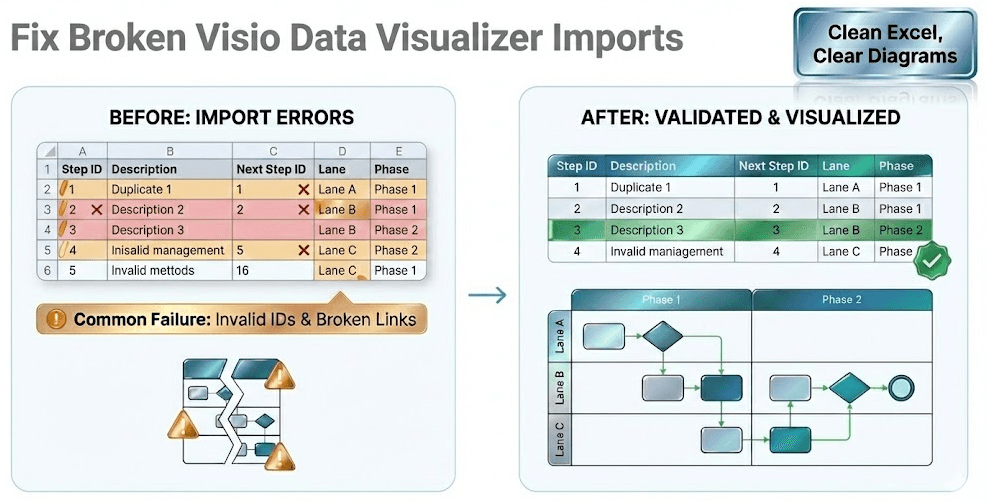
Data Visualizer dataset format (columns, rules, and examples)
Visio’s Cross-Functional Flowchart (Data Visualizer) template generates a diagram from a dataset table. If your dataset is “almost right” but not exact, Visio import fails — or worse, it imports with broken structure.
This page gives you the practical dataset rules to validate before import, plus examples you can compare against.
If you haven’t generated a dataset yet, start here: Download Lite (Free).
If your starting point is an existing Visio diagram and you want the dataset in Excel, start here: Convert a Visio diagram to Excel (diagram → dataset).
Quick integrity checklist (before you import)
- Process Step ID is required and unique (no duplicates).
- Next Step ID must reference an existing Process Step ID (no broken links).
- Shape Type must be a valid value for the template you are importing into.
- Cross-functional flowcharts: every row should have valid Function (lane) and Phase values.
If you want the fastest way to find errors: validate IDs first, then validate Shape Type values, then validate lane/phase. Most import failures are caused by one of those three categories.
Column guide (core fields)
Column names can vary slightly depending on your template/version, but these are the concepts you must satisfy.
| Column | Purpose | Rule |
|---|---|---|
| Process Step ID | Unique identifier for each step. | Required. Must be unique. Keep stable even if you edit step text. |
| Process Step Description | The label shown in the diagram. | Required. Keep consistent (verb + object + condition) for clean AI analysis. |
| Next Step ID | Defines connectors / flow between steps. | Must reference an existing Process Step ID. Branching is typically comma-separated IDs. |
| Shape Type | Controls which shape Visio creates. | Must be an allowed value for your target template (Process, Decision, Start/End, etc.). |
| Function (Cross-functional) | Swimlane assignment. | Required for cross-functional maps. Use consistent names (avoid near-duplicates). |
| Phase (Cross-functional) | Column grouping (phase/stage). | Required for many cross-functional templates. Use consistent names and ordering. |
Examples you can compare against
- Cross-functional dataset example (swimlanes + phases).
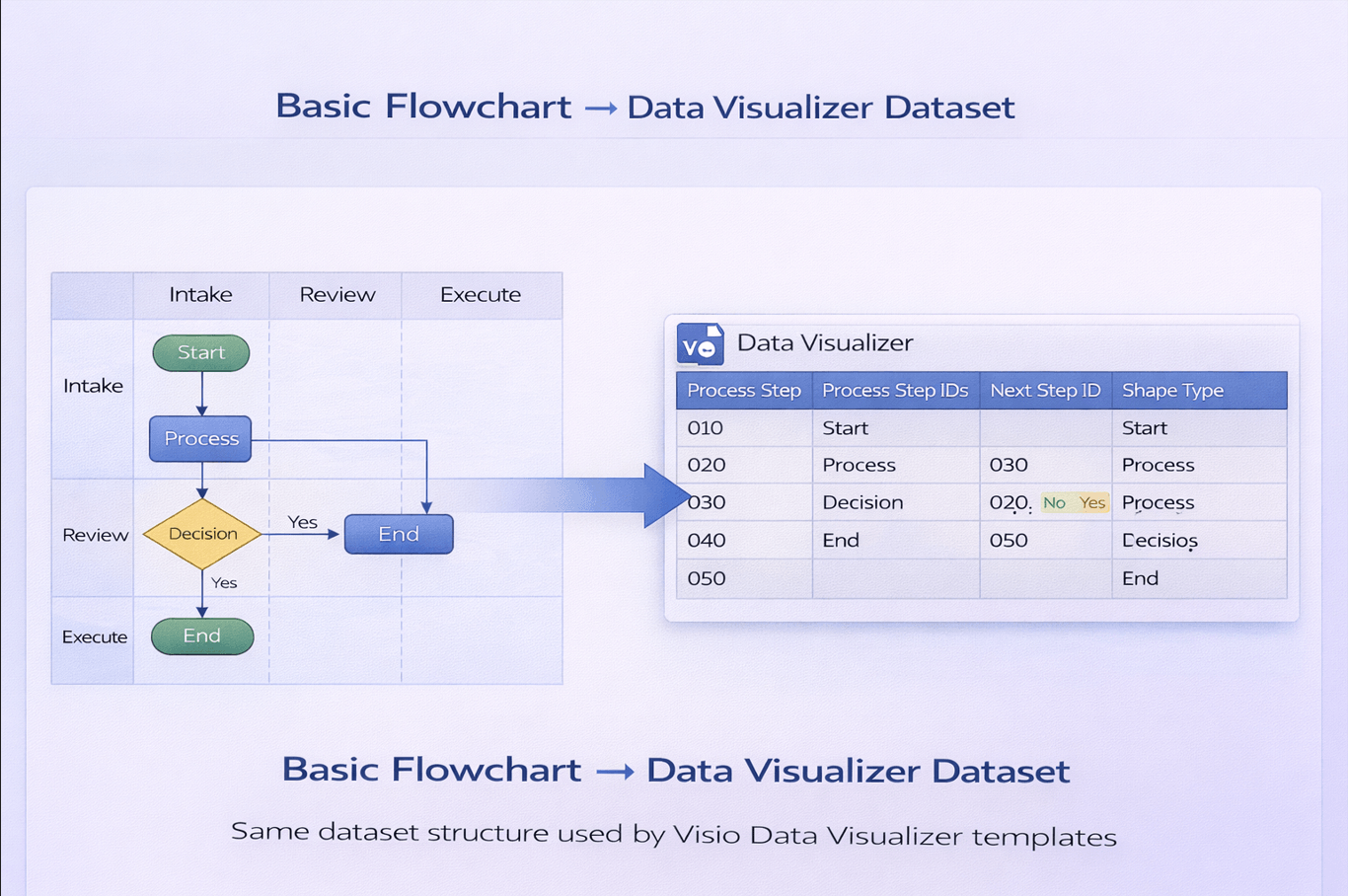
- Basic flowchart dataset example (simple shapes and flow).
If your dataset deviates significantly from these examples, Visio import is likely to fail.
If you need to export the dataset from an existing Visio diagram (instead of building the table from scratch), start here: Convert a Visio diagram to Excel (diagram → dataset).
When import fails
If Visio throws an import error, use this guided workflow to isolate the bad row fast:
Back to hub · Convert a Visio diagram to Excel
Microsoft, Visio, and Excel are trademarks of Microsoft. This product is an independent tool and is not affiliated with Microsoft.