
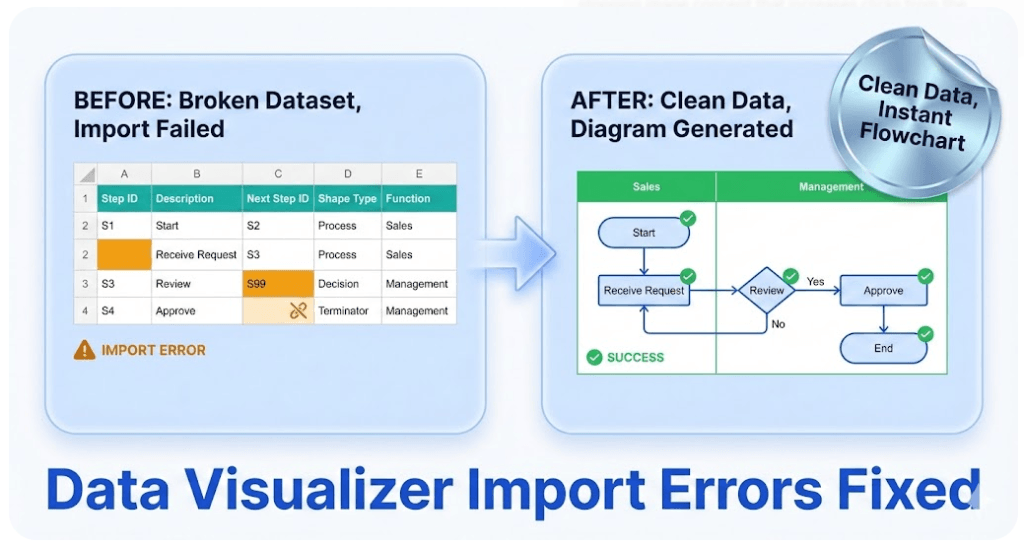
Data Visualizer import troubleshooting (fix dataset errors fast)
Import errors usually mean one thing: the dataset is not internally consistent. The good news is that dataset problems are faster to diagnose than diagram problems — as long as you follow a clean workflow.
This guide helps you isolate the failing row(s), fix the root cause, and get back to regenerating clean diagrams from data.
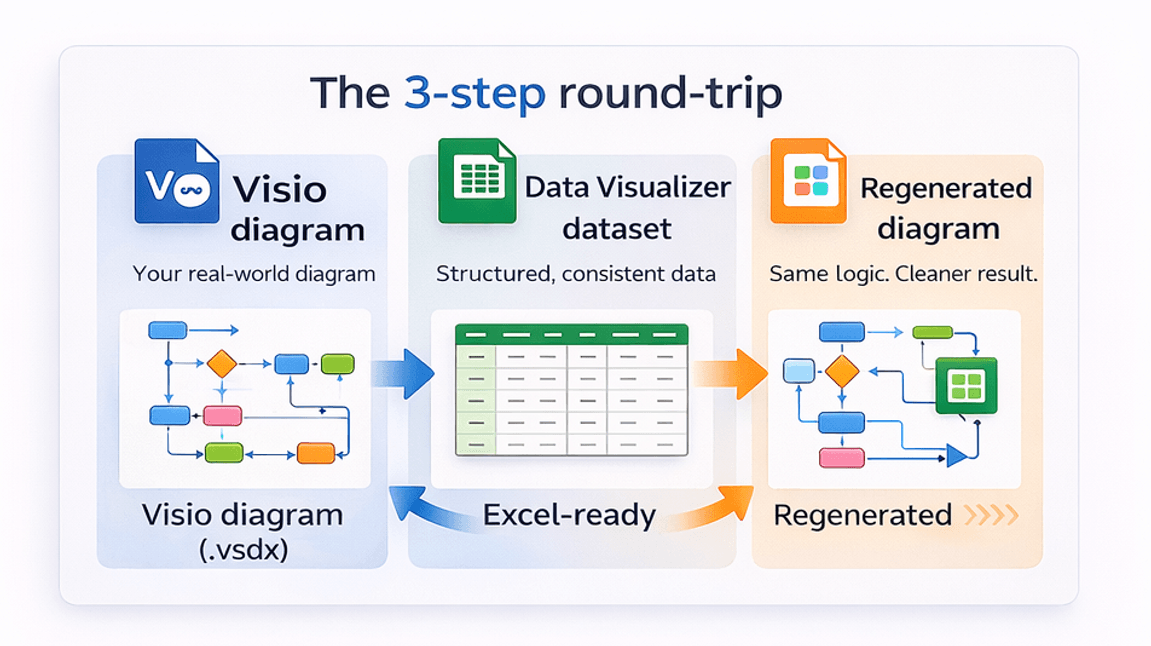
If your starting point is an existing Visio diagram and you need the dataset in Excel, start here: Convert a Visio diagram to Excel (diagram → dataset).
If you need the column rules first, start here: Dataset format.
Most common root causes
| Symptom | Likely cause | Fix |
|---|---|---|
| Import fails immediately | Duplicate Process Step ID | Make IDs unique. Keep IDs stable over time (change text, not IDs). |
| Broken connectors / missing steps | Next Step ID references a non-existent ID | Add the missing step or correct the reference. Validate every Next Step ID. |
| Shapes not created / wrong shapes | Invalid Shape Type values | Use only allowed shape types for the template you’re importing into. |
| Cross-functional flowchart looks “scrambled” | Inconsistent Function (lane) / Phase values | Standardize lane/phase naming. Eliminate near-duplicates (e.g., “Finance” vs “Fin”). |
| Branching/decisions behave oddly | Ambiguous branching in Next Step ID | Use the correct separator/format for multiple Next Step IDs and ensure each branch points to real steps. |
The fastest way to isolate the bad row
- Start with a known-good example and confirm Visio imports it successfully: Cross-functional example.
- Validate IDs first (duplicates and missing references). Fix those before anything else.
- Split the dataset: import the first half; if it works, the problem is in the second half. Repeat until you isolate a small failing set.
- Fix the failing rows, then re-import the full dataset.
This “binary search” approach feels almost too simple — but it is often the fastest method when you have one hidden data problem.
Excel checks you can run in minutes
1) Duplicate ID check
In a helper column: =COUNTIF([Process Step ID],[@[Process Step ID]])Any value > 1 means you have a duplicate ID.
2) Missing Next Step ID check
For each Next Step ID: =ISNUMBER(MATCH([@[Next Step ID]],[Process Step ID],0))If your Next Step ID contains multiple IDs (branching), you may need to split into multiple columns or normalize before validating.
3) Standardize lane/phase values
Create a unique list of Function (lane) values and Phase values, then scan for near-duplicates caused by spacing, abbreviations, or typos.
If you still can’t import
If your dataset checks out but Visio still fails, compare your column names and allowed values against: Dataset format.
Also try importing a smaller dataset (10–20 rows) and then expanding. If small imports work but large fails, the issue is usually a specific row or a specific invalid value.
If your main goal is exporting a Visio diagram to Excel (before you even think about importing back into Visio), start here: Convert a Visio diagram to Excel (diagram → dataset).
Back to hub · Convert a Visio diagram to Excel
Microsoft, Visio, and Excel are trademarks of Microsoft. This product is an independent tool and is not affiliated with Microsoft.