
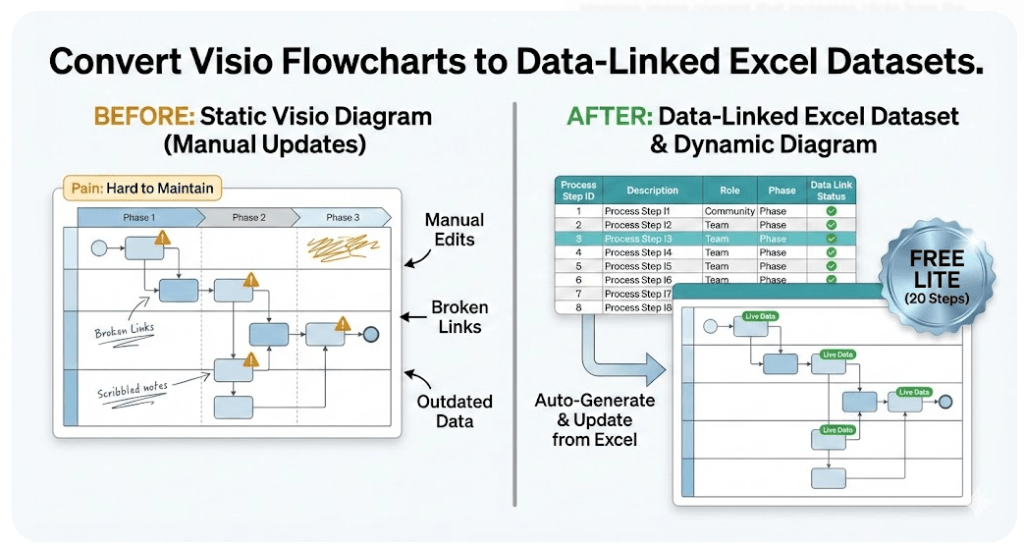
Download Lite (Free, 20 steps)
Lite is the fastest way to test this on your real Visio diagram. It exports the 1st 20 steps so you can validate conversion and confirm fit before upgrading.
If your immediate goal is exporting a Visio diagram to Excel, start here: Convert a Visio diagram to Excel (diagram → dataset).
Get the download link instantly:
You’ll get the download link immediately and also by email (so you can find it later). No spam — just the download + first-run notes.
- Windows desktop executable
- Designed for Visio cross-functional flowcharts (swimlanes + phases)
- Free opt-in – download link provided immediately + by email
How to run Lite on a real diagram
- Download the Lite ZIP from the form above.
- Unzip the file and run the Windows executable.
- Select your Visio cross-functional flowchart (.vsdx).
- Export the dataset (Lite exports the first 20 steps).
- Import into Visio Cross-Functional Flowchart (Data Visualizer) to generate a diagram linked to the data.
If import fails, jump straight to: Data Visualizer import troubleshooting.
What to do after you generate the dataset (this is the win)
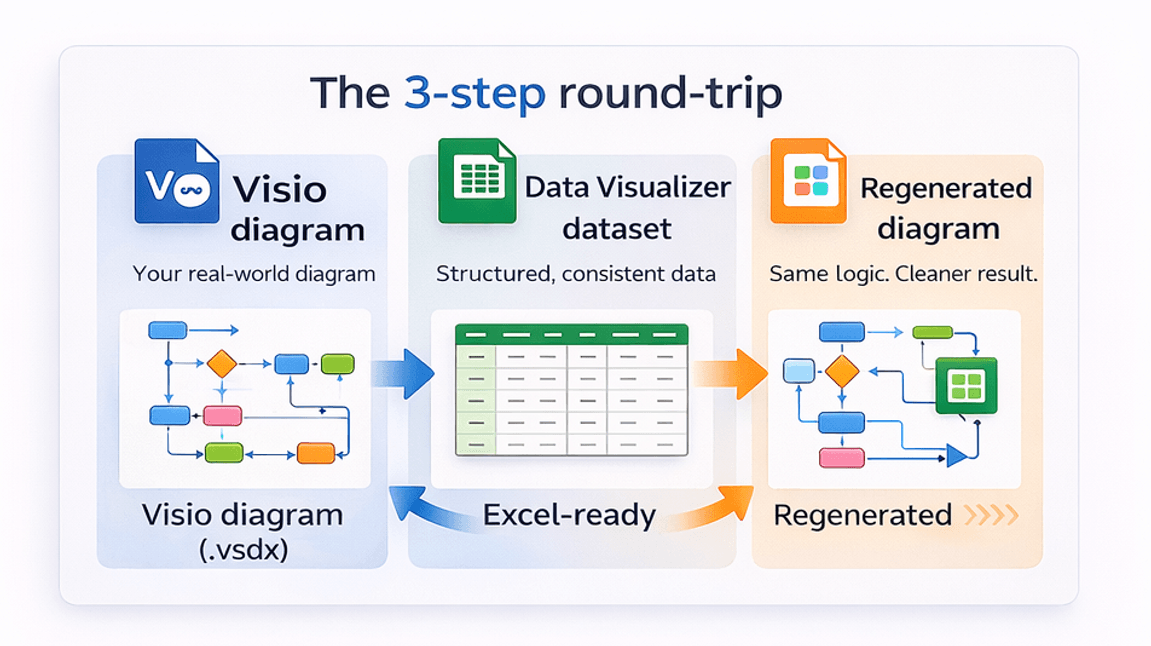
- Generate the dataset from your Visio swimlane diagram.
- Open Visio and start Cross-Functional Flowchart (Data Visualizer).
- Import the dataset so Visio builds a diagram linked to the data.
- Edit the dataset in Excel and refresh the diagram to apply updates cleanly.
If you want the dataset in Excel first, this page is the fast entry point: Convert a Visio diagram to Excel (diagram → dataset).
If that loop fits your workflow, Standard is the right upgrade.
Lite includes
- Free export of the 1st 20 process steps
- A fast proof-of-value run on a real diagram
- A clear go/no-go decision before you spend money
Lite limitations
- Limited to the 1st 20 process steps
- Intended for evaluation, not full-size process libraries
Upgrade to Standard (Unlimited)
If Lite confirms fit, Standard removes the step limit so you can convert full-size process maps.
Standard includes a 30-day refund policy.
If you want the “Visio diagram → Excel dataset” entry point, use: Convert a Visio diagram to Excel.
Microsoft, Visio, and Excel are trademarks of Microsoft. This product is an independent tool and is not affiliated with Microsoft.
FAQ
Is Lite really free?
Yes. Lite is a free proof-of-value download. You enter an email so we can send the download link and first-run notes.
What does “20 steps” mean?
Lite exports the first 20 process steps from your diagram. It’s enough to validate conversion and confirm fit before upgrading.
What do I do after I generate the dataset?
Open Visio and start Cross-Functional Flowchart (Data Visualizer), import the dataset, then maintain updates in Excel and refresh the generated diagram.
Does Lite upload my files anywhere?
No. Lite runs locally on Windows. Your diagram and dataset stay on your machine unless you choose to share them.