
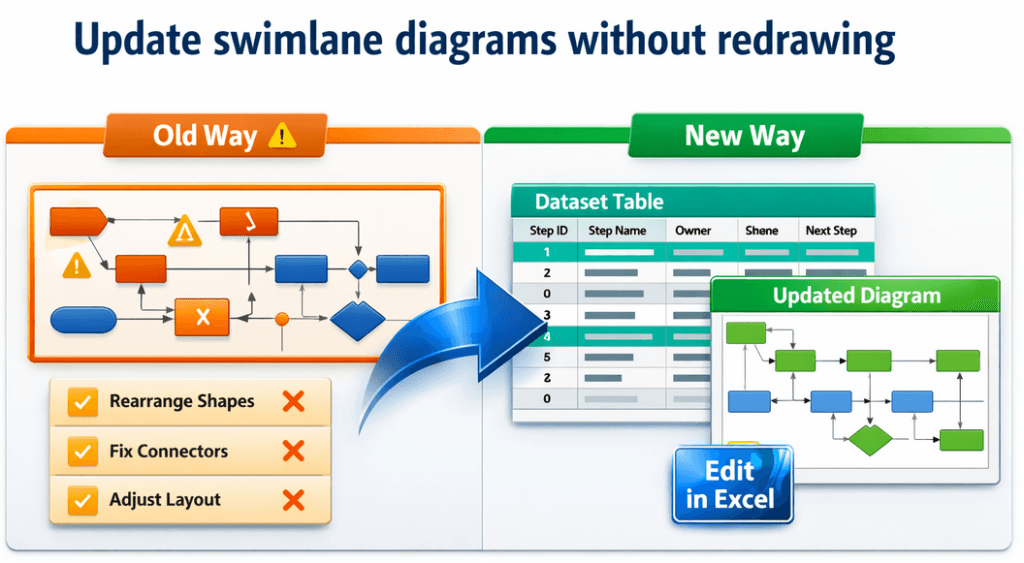
Update swimlane diagrams without redrawing (dataset-driven loop)
Most teams “update” swimlane diagrams by moving shapes and connectors around. That works once — until the diagram becomes fragile and inconsistent.
A faster approach: convert the diagram into the Data Visualizer dataset, update the dataset in Excel, and regenerate a clean diagram. Your process becomes maintainable because the dataset becomes the source of truth.
Start with Lite (Free) See Standard (Unlimited)
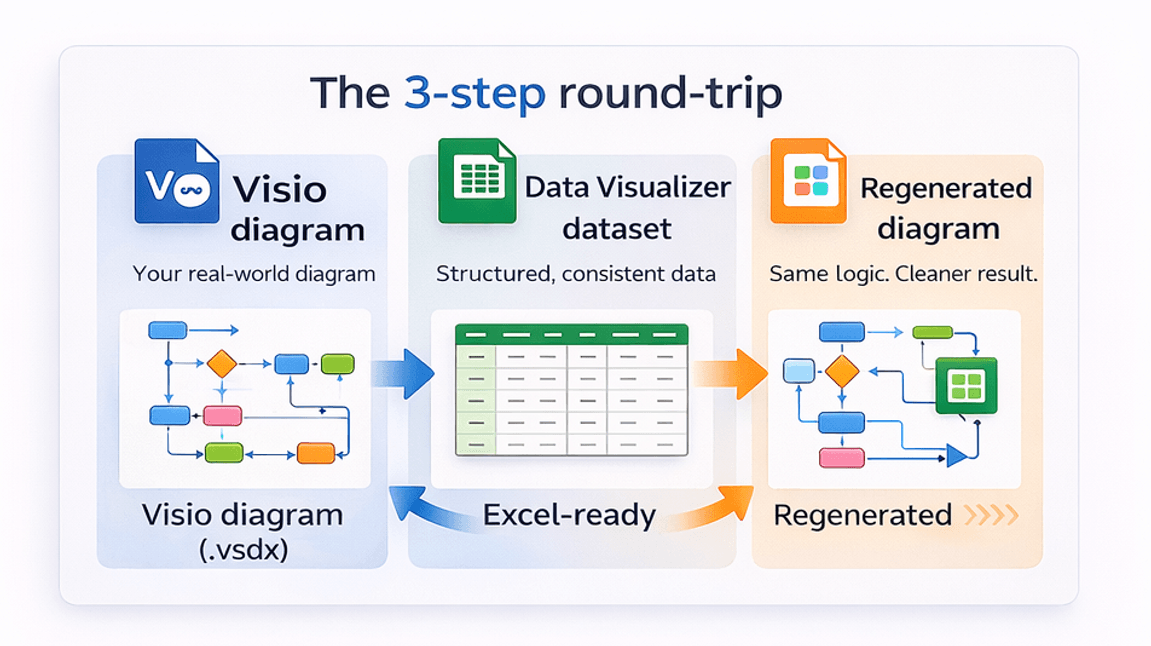
The “no redraw” workflow
- Convert once: export the dataset from your existing Visio swimlane diagram.
- Update in Excel: add/remove steps, change ownership/lane/phase, edit descriptions, fix connections.
- Regenerate in Visio: import the dataset into a Data Visualizer template and refresh the diagram.
The goal is not to “auto-draw” forever — it’s to make changes reviewable and consistent by managing the process as data.
Common reasons diagrams get redrawn (and how data fixes it)
| Why redrawing happens | Dataset-driven fix |
|---|---|
| Reorg changes swimlane ownership | Update the Function (lane) values in Excel and regenerate. |
| New steps get inserted mid-flow | Add a new row with a new ID, then update Next Step IDs to reconnect the flow. |
| People rename steps inconsistently | Standardize step descriptions in one column and refresh all diagrams from the dataset. |
| Multiple Visio copies drift | Maintain one dataset as source of truth and generate different views from it (lenses). |
Want multi-view “lenses”? See: RACI / value stream / risk lenses.
Related pages
- Dataset format rules (columns + integrity checks).
- Import troubleshooting (fix dataset issues fast).
- Audit in Excel (find duplicates, missing owners, inconsistencies).
Microsoft, Visio, and Excel are trademarks of Microsoft. This product is an independent tool and is not affiliated with Microsoft.